

I this post we will see How to install and setup Vagrant on Ubuntu 16.04. Vagrant is an open-source software for building and maintaining portable virtual software development environments. Vagrant is an application which enables us in building consistent development environments with ease using Vagrantfile.
I order to set up vagrant environment on your Ubuntu operating system will need to install Virtual Box . So let us see what steps we need to follow in order to get up and running with vagrant.
Step 1 – Install VirtualBox.
sudo apt-get install virtualbox
Step 2 – Install Vagrant.
sudo apt-get install vagrant
Step 3 – Verify Vagrant version
once vagrant is installed on Ubuntu operating system, we can verify it by following command:
$ vagrant
And if you see the following response then vagrant is install perfectly on your system.
$ vagrant
Usage: vagrant [options] <command> [<args>]

    -v, --version                    Print the version and exit.
    -h, --help                       Print this help.

Common commands:
     box             manages boxes: installation, removal, etc.
     connect         connect to a remotely shared Vagrant environment
     destroy         stops and deletes all traces of the vagrant machine
     global-status   outputs status Vagrant environments for this user
     halt            stops the vagrant machine
     help            shows the help for a subcommand
     init            initializes a new Vagrant environment by creating a Vagrantfile
     login           log in to HashiCorp's Vagrant Cloud
     package         packages a running vagrant environment into a box
     plugin          manages plugins: install, uninstall, update, etc.
     port            displays information about guest port mappings
     powershell      connects to machine via powershell remoting
     provision       provisions the vagrant machine
     push            deploys code in this environment to a configured destination
     rdp             connects to machine via RDP
     reload          restarts vagrant machine, loads new Vagrantfile configuration
     resume          resume a suspended vagrant machine
     share           share your Vagrant environment with anyone in the world
     snapshot        manages snapshots: saving, restoring, etc.
     ssh             connects to machine via SSH
     ssh-config      outputs OpenSSH valid configuration to connect to the machine
     status          outputs status of the vagrant machine
     suspend         suspends the machine
     up              starts and provisions the vagrant environment
     validate        validates the Vagrantfile
     version         prints current and latest Vagrant version

For help on any individual command run `vagrant COMMAND -h`

Additional subcommands are available, but are either more advanced
or not commonly used. To see all subcommands, run the command
`vagrant list-commands`.
Setup Ubuntu 16.04 to be used with Vagrant and Virtualbox
Step 4 Install Ubuntu Box
We can find Vagrant Boxes on the Vagrant Cloud. ubuntu/trusty64 is one of the most popular box (machine), which has nearly 30 million installs. So we will install this box.
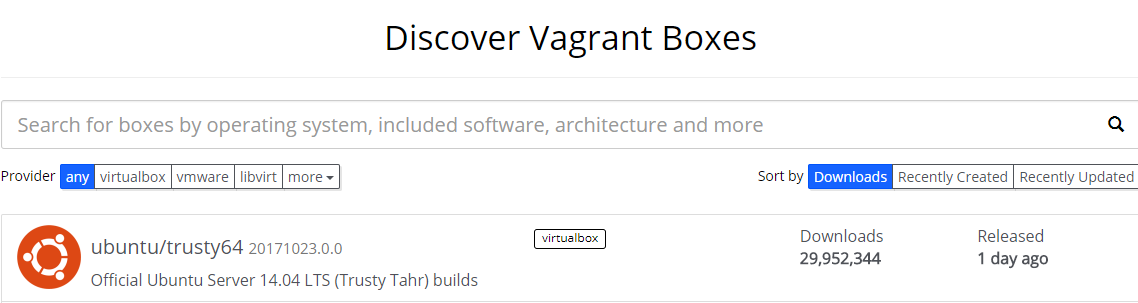
Run the following command in your terminal.
$ vagrant box add ubuntu/trusty64
Output:
==> box: Loading metadata for box 'ubuntu/trusty64'
    box: URL: https://vagrantcloud.com/ubuntu/trusty64
==> box: Adding box 'ubuntu/trusty64' (v20170619.0.0) for provider: virtualbox
    box: Downloading: https://app.vagrantup.com/ubuntu/boxes/trusty64/versions/20170619.0.0/providers/virtualbox.box
==> box: Successfully added box 'ubuntu/trusty64' (v20170619.0.0) for 'virtualbox'!
Now initialize the vagrant box using the following command.
$ vagrant init ubuntu/trusty64
Output
`Vagrantfile` has been placed in this directory. You are now
ready to `vagrant up` your first virtual environment! Please read
the comments in the Vagrantfile as well as documentation on
`vagrantup.com` for more information on using Vagrant.
Finally run the following command to start your box.
$ vagrant up
Output:
Bringing machine 'default' up with 'virtualbox' provider...
==> default: Importing base box 'ubuntu/trusty64'...

...

==> default: Machine booted and ready!
Now connect to you newly created machine via ssh using following command
vagrant ssh
if the above command works fine then you will see the following output:
Welcome to Ubuntu 14.04.5 LTS (GNU/Linux 3.13.0-133-generic x86_64)

 * Documentation:  https://help.ubuntu.com/

 System information disabled due to load higher than 1.0

  Get cloud support with Ubuntu Advantage Cloud Guest:
    http://www.ubuntu.com/business/services/cloud

0 packages can be updated.
0 updates are security updates.

New release '16.04.3 LTS' available.
Run 'do-release-upgrade' to upgrade to it.


Last login: Wed Oct 18 21:08:02 2017 from 10.0.2.2
vagrant@vagrant-ubuntu-trusty-64:~$
If the vagrant ssh command does not work then use the following command to know your ssh config
λ vagrant ssh-config
Host default
  HostName 127.0.0.1
  User vagrant
  Port 2222
  UserKnownHostsFile /dev/null
  StrictHostKeyChecking no
  PasswordAuthentication no
  IdentityFile /c/Users/ProgrammingKnowledge/Videos/vagrant/ubuntu/.vagrant/machines/default/virtualbox/private_key
  IdentitiesOnly yes
  LogLevel FATAL
And use the following ssh command to connect via ssh
λ ssh vagrant@127.0.0.1 -p 2222 -i /c/Users/ProgrammingKnowledge/Videos/vagrant/ubuntu/.vagrant/machines/default/virtualbox/private_key
Thanks.
How to Set up Virtual Box and Vagrant on Windows
Thank you for this article Centauro alquiler coches Ibiza