

In this lesson we will learn how to use QFileDialog in qt.
The QFileDialog class provides a dialog that allow users to select files or directories.
First lets see how to use static function QFileDialog::getOpenFileNames
Basic syntax of QFileDialog::getOpenFileNames
[static] QStringList QFileDialog::getOpenFileNames(QWidget *parent = Q_NULLPTR, const QString &caption = QString(), const QString &dir = QString(), const QString &filter = QString(), QString *selectedFilter = Q_NULLPTR, Options options = Options())
This is a convenience static function that will return one or more existing files selected by the user.
  QStringList files = QFileDialog::getOpenFileNames(
                          this,
                          "Select one or more files to open",
                          "/home",
                          "Images (*.png *.xpm *.jpg)");
Now Lets create a Program and see how we can use QFileDialog::getOpenFileNames in practice
File->New File or Project…
Applications->Qt Gui Application->Choose…
We keep the class as MainWindow as given by default.
Now write the code below in main.cpp
#include <QApplication>
#include <QFileDialog>
#include <QDebug>

class QFileDialogTester : public QWidget
{
public:
  void openFile()
  {
    QStringList filename =  QFileDialog::getOpenFileNames(
          this,
          "Open Document",
          QDir::currentPath(),
          "All files (*.*) ;; Document files (*.doc *.rtf);; PNG files (*.png)");

    if( !filename.isEmpty() )
    {
      qDebug() << "selected file paths : " << filename.join(",").toUtf8();
    }
  }
};


int main( int argc, char **argv )
{
  QApplication app( argc, argv );

  QFileDialogTester test;
  test.openFile();

  return 0;
}
Now build and run the program.
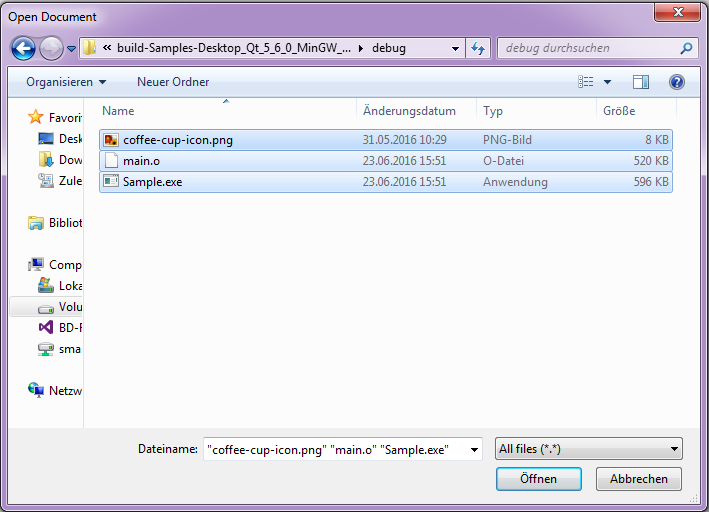
After selecting the file using open file dialog this code will print the paths of the selected files in console.
OUTPUT
selected file path : "your/project/dir/coffee-cup-icon.png", selected file path : "your/project/dir/main.o", selected file path : "your/project/dir/Sample.exe"
Leave a Reply